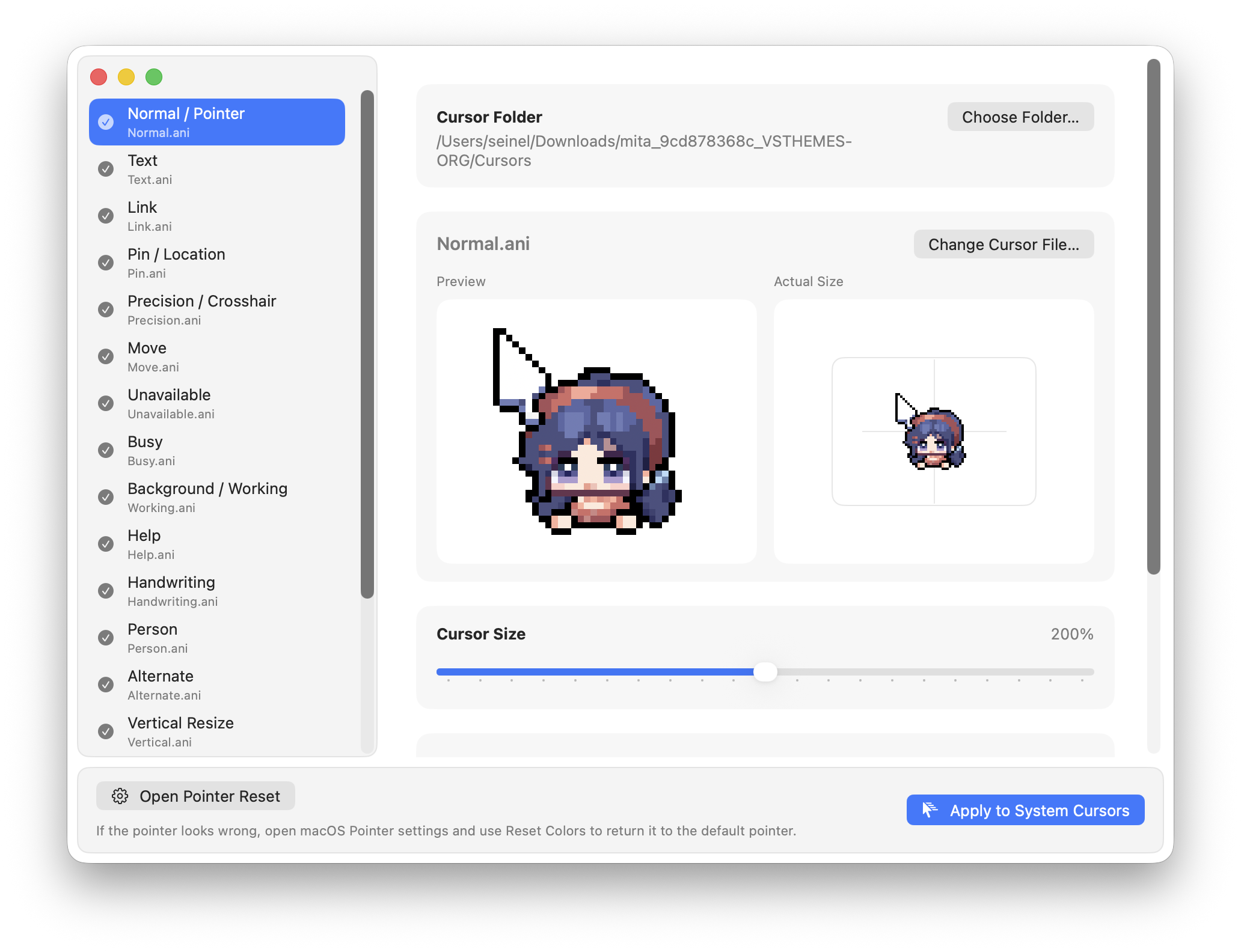
Use custom cursors on macOS
macOS lets you adjust the pointer size and color, but applying a full custom cursor theme needs a cursor manager. Cursie imports the Windows .cur and animated .ani formats so you can use an existing cursor pack on your Mac.
Change your Mac cursor in four steps
Install Cursie
Download the latest Cursie DMG and move the app to Applications. It supports Apple Silicon and Intel Macs.
Import your cursor files
Choose a folder containing
.curor.anifiles, or drag a folder or single file onto Cursie.Preview the cursor roles
Check the arrow, text, link, busy, and resize cursor mappings before you make any system-wide change. Animated cursors can be previewed too.
Apply the custom cursor set
Apply the reviewed set to macOS. You can replace individual roles manually when a pack uses unusual file names.
Restore the default Mac cursor
When you want the standard pointer back, open Cursie’s pointer-reset guidance and use the macOS Pointer settings to reset the pointer colors. Preview a new pack before applying it so the arrow and text cursor are always the ones you expect.
Compatibility tip: Packs with role names such as Normal, Text, Link, and Busy map most reliably. Very long animated cursors are balanced for dependable system registration.
Custom Mac cursor FAQ
Can a Mac use Windows cursor files?
Yes. Cursie imports Windows .cur and .ani files, maps them to macOS cursor roles, and lets you apply the result system-wide.
Does this work with a MacBook trackpad?
Yes. It changes the macOS system pointer shown when you use either a trackpad or an external mouse.
Can I use animated custom cursors on a Mac?
Yes. Cursie previews animated .ani files and supports applying them as part of a cursor set.